iPad vs. Galaxy Tab S9 vs. Xiaomi Pad 6: Stylus, Multitasking, and Productivity Compared
Buy a tablet today and you're not just buying a bigger phone screen — you're buying into a specific way of taking notes, marking up PDFs, and running two apps side by side. The stylus and multitasking experience varies enormously between the three tablets sold on this site, and it rarely shows up in a spec sheet comparison of chipset and display resolution. This guide looks specifically at how the iPad (10th generation), the Galaxy Tab S9, and the Xiaomi Pad 6 handle pen input and running more than one app at once, because for a lot of buyers this is the feature that actually decides day-to-day usefulness.
Apple Pencil on the iPad: Capable, But Complicated by Generation
The entry-level iPad (10th generation) is the most confusing of the three tablets when it comes to stylus support, because Apple sells three different Apple Pencil models and this particular tablet is only compatible with one of them in a straightforward way. The 10th-gen iPad uses USB-C for charging, but it does not have the flush edge that lets the second-generation Pencil magnetically attach and wirelessly charge. Instead, buyers need the original first-generation Apple Pencil paired with a separate USB-C-to-Lightning adapter, a small dongle that is easy to lose and turns "just pair the pen" into an extra shopping-cart item. Once paired, the writing experience itself is excellent — low latency, pressure-adjacent tilt shading in apps like Notability and GoodNotes, and rock-solid palm rejection — but the setup friction is real, and it is worth knowing before buying a Pencil separately assuming it will click straight onto the frame like it does on the Pro and Air models.
S Pen on the Galaxy Tab S9: Included, Charged, Ready
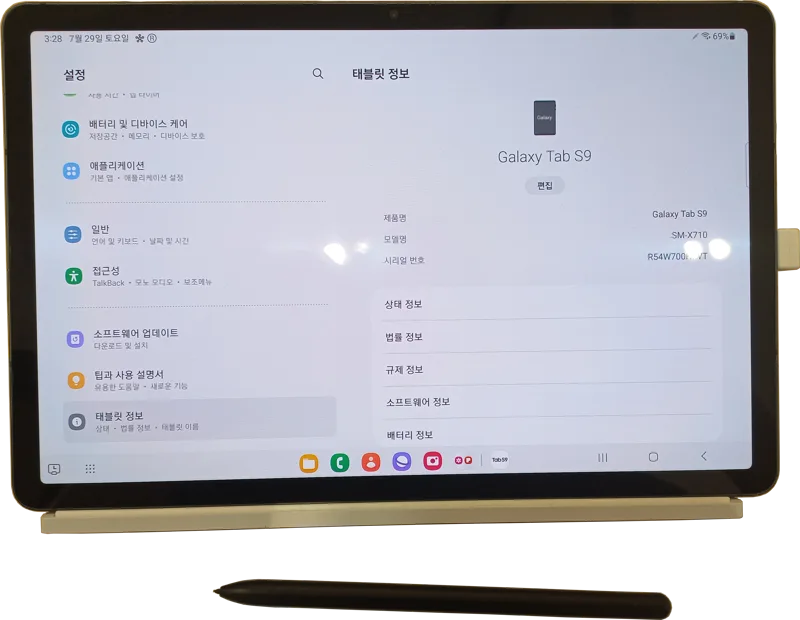
Samsung's approach on the Galaxy Tab S9 removes almost all of that friction: the S Pen ships in the box at no extra cost, it snaps magnetically to the back of the tablet to charge wirelessly while not in use, and Samsung Notes opens instantly the moment the pen is lifted off the screen, even from a locked display. The S Pen also supports air actions — gesture-based shortcuts using the pen's built-in gyroscope to control media playback or navigate a presentation from a few feet away, a genuinely unique trick neither competitor replicates. Handwriting-to-text conversion inside Samsung Notes is fast and accurate across multiple languages, and the S Pen's pressure sensitivity holds up well against natural-media drawing apps. For anyone who plans to sketch, annotate PDFs, or take handwritten notes as a primary use case, the S Pen being bundled rather than sold separately is a meaningful cost and convenience advantage that shows up the moment you open the box.
Xiaomi Smart Pen: Capable Hardware, Smaller App Ecosystem
The Xiaomi Pad 6 supports the Xiaomi Smart Pen, sold separately, which pairs over Bluetooth and offers 4,096 levels of pressure sensitivity — technically on par with the competition. Where the Xiaomi experience falls behind is software polish: MIUI's native notes app is noticeably less refined than GoodNotes or Samsung Notes, third-party stylus-aware apps are less consistently optimized for the Pad 6's specific screen, and palm rejection, while functional, occasionally misfires during fast sketching sessions in a way that rarely happens on the other two tablets. The Pad 6's 144Hz display does make the pen feel exceptionally smooth and responsive in supported apps, which is a genuine strength, but buyers coming from an iPad or Galaxy Tab expecting an equivalent ecosystem of stylus-first apps will find the selection meaningfully thinner.
Multitasking: Stage Manager vs. Samsung DeX vs. Android Split-Screen
Running two or three apps at once is where the software philosophy differences become most obvious. Apple's Stage Manager on iPadOS lets users overlap resizable app windows and stack them into groups, which feels powerful but can be genuinely confusing to learn — windows can end up stacked in unexpected ways, and external display support has historically been inconsistent depending on the specific iPad model and iPadOS version. Samsung DeX mode, available on the Galaxy Tab S9, goes further: connect a keyboard, mouse, or external monitor and the tablet transforms into something that behaves remarkably like a desktop taskbar-and-windows environment, complete with resizable, freely draggable windows and drag-and-drop file support between apps. It is arguably the most desktop-like multitasking experience among the three, and it is included at no extra cost. The Xiaomi Pad 6 relies on standard Android split-screen and floating-window multitasking, which is functional and easy to understand but noticeably less flexible than either Stage Manager or DeX — there is no dedicated desktop mode, and window management is limited to fixed split ratios rather than freeform resizing.
Keyboard Cases: The Other Half of "Productivity"
A stylus is only one half of turning a tablet into a laptop replacement, and keyboard case support tells a similar story to the pen situation. Apple sells a dedicated Magic Keyboard Folio for the 10th-generation iPad with a proper trackpad, function-row shortcuts, and a floating hinge design, though it carries a premium price tag that can rival the cost of a budget laptop. Samsung's Book Cover Keyboard for the Galaxy Tab S9 is more modestly priced, includes a trackpad, and pairs naturally with DeX mode to make the whole package feel closer to a genuine 2-in-1 laptop than a tablet with an add-on. Xiaomi's official keyboard case for the Pad 6 is the cheapest of the three and gets basic typing done, but it lacks a trackpad on most regional variants and feels more like a typing accessory than a full productivity companion. For anyone planning to actually write, edit spreadsheets, or manage email on a tablet for extended sessions, it is worth pricing the keyboard case alongside the tablet itself rather than treating it as an afterthought, since the total cost of a genuinely productive setup can shift the value comparison between these three devices considerably.
Which Setup Actually Makes Sense for You
If handwritten note-taking is the primary reason for buying a tablet, the Galaxy Tab S9's bundled, instantly-ready S Pen is hard to beat on both cost and convenience — there's no separate purchase, no charging cable to hunt for, and Samsung Notes syncing is dependable. If the priority is the broadest, most mature ecosystem of stylus-aware creative and productivity apps, the iPad remains the safer long-term bet despite the Pencil-compatibility complication on this specific model — just budget for the Pencil and adapter as a separate line item. And if the goal is simply a capable, affordable tablet where occasional pen input and basic split-screen work are nice-to-haves rather than daily requirements, the Xiaomi Pad 6 undercuts both rivals on price while still offering a genuinely smooth 144Hz screen for everyday browsing, video, and casual sketching. None of the three approaches is objectively wrong — they represent three different bets on how people actually want to work on a tablet, and the right choice depends far more on whether you'll use the pen daily or occasionally than on any single spec on a comparison chart.